Category Attributes and Attribute Sets v27.1+
A category attribute is a field of a category, such as Name or Description. You can add your own attributes, for example a brand story or a season. An attribute set is a list of attributes in groups. Each group is a tab on the category page in the admin. Each category uses one attribute set.
Add an attribute
- Go to System > Attributes > Categories.
- Click Add.
- On the Properties tab, enter the Attribute Code. Use only lowercase letters, numbers and underscores, and start with a letter. You cannot change the code later.
- Select the Input Type: Text Field, Text Area, Date, Yes/No, Multiple Select, Dropdown or Image. You cannot change the input type later.
- Select the Scope. Store View lets each store view have its own value. Website gives all the store views of a website one value, and each website can have its own value. Global gives all the websites one value.
- On the Manage Label / Options tab, enter the label. For a Dropdown or a Multiple Select, add the options.
- Click Save.
A new attribute goes into the first group of the Default set, so the category page shows it at once. To move it to another tab or to add it to another set, edit the set.
The grid lists only the attributes that you added. The standard fields of a category, such as Name and Description, keep their place on the category page.
Put the attribute on a tab
- Go to System > Attributes > Categories and click Attribute Sets.
- Click the set, for example Default.
- Drag the attribute from Unassigned Attributes to a group. To make a new tab, click Add above the groups.
- Click Save.
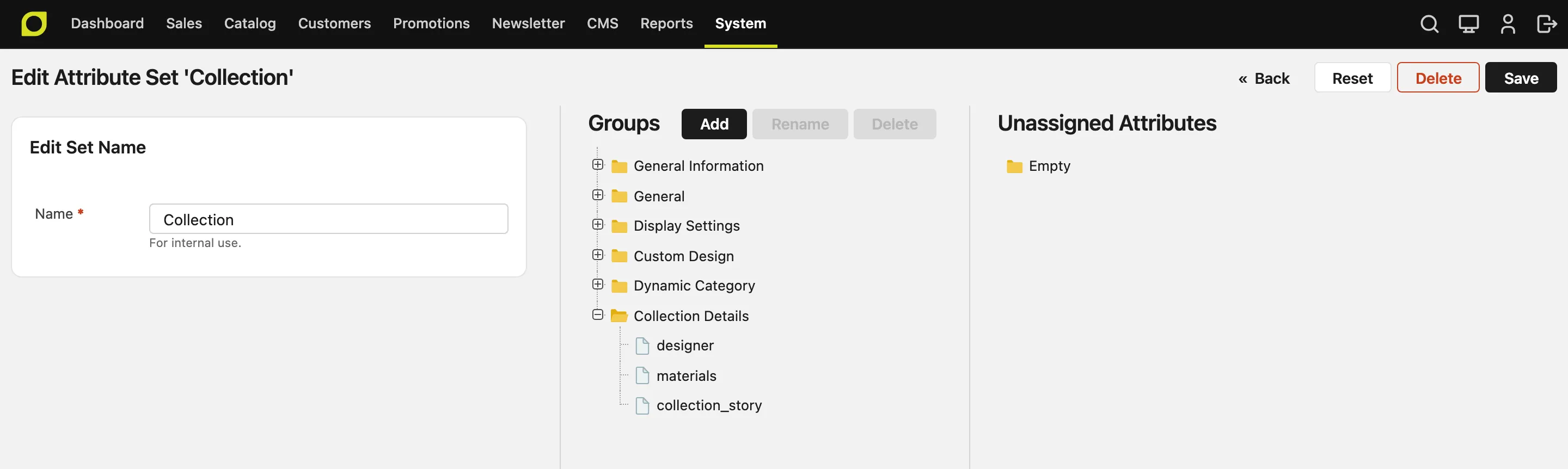
The groups of the set are the tabs of the category page. A group with no attributes shows no tab.
Use more than one set
Make a set for each kind of category. For example, a Brand set adds a country of origin and a brand story, and the Default set does not show them.
- Go to System > Attributes > Categories, click Attribute Sets, and click Add.
- Enter the name, and select the set in Based On. The new set starts with the groups and the attributes of that set.
- Click Save, then change the groups and the attributes.
When a store has more than one category set, the first tab of a category shows the Attribute Set field. A new category starts with the set of its parent. When you select another set, the page shows the fields of that set at once, and keeps the values that you entered.
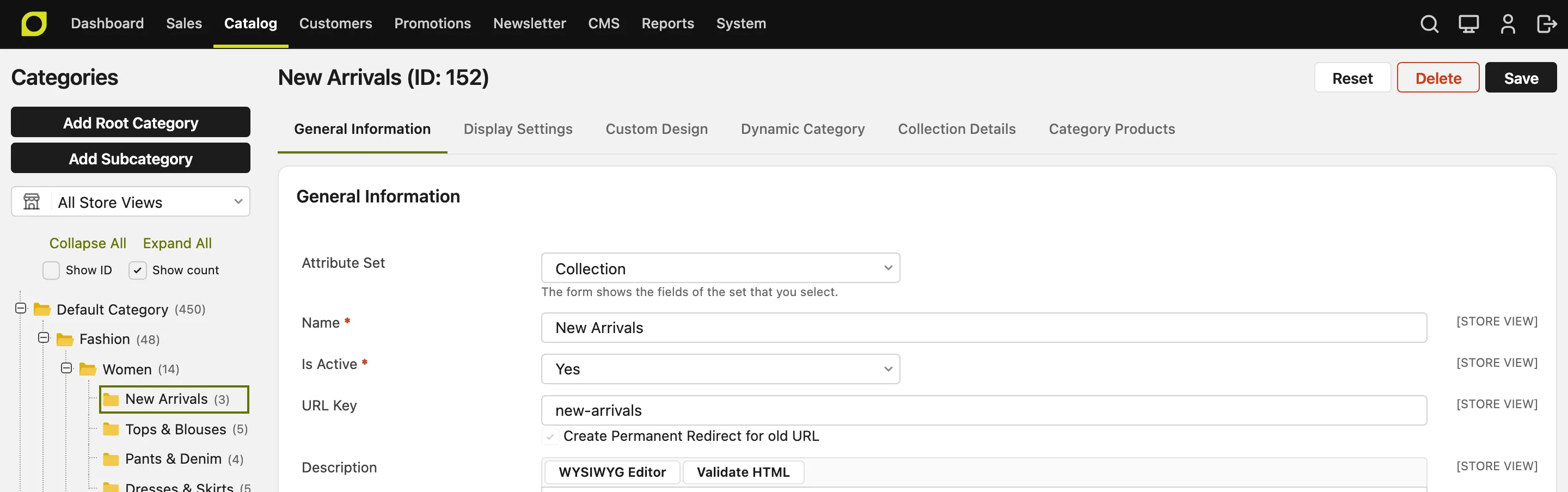
You can also change the set of a saved category. When the new set does not have some attributes of the old set, the page asks first and names them. When you save, the category loses its values of these attributes.
Do not take an attribute out of a set by mistake. Every night, the store deletes the value of an attribute that is not in the set of its category. When a save of the set page takes an attribute out, the page asks first, and names the number of categories that have a value.
You cannot delete the default set. When you delete another set, its categories move to the default set.
Show the attribute on the category page
Set Visible on Frontend to Yes in the Frontend Properties of the attribute. The category page then shows the attribute and its value in a table under the category description. A category with no value for the attribute does not show it.
A Text Area value shows under the table, with the label of the attribute as its title, because a long text does not fit in a table.
Each group of the set is a table of its own, in the order of the groups. The table of the first group has the title Additional Information. Each other table has the name of its group, in the language of the store view. In each table, the attributes follow the order of the group. To change the order, drag the attribute in the set.
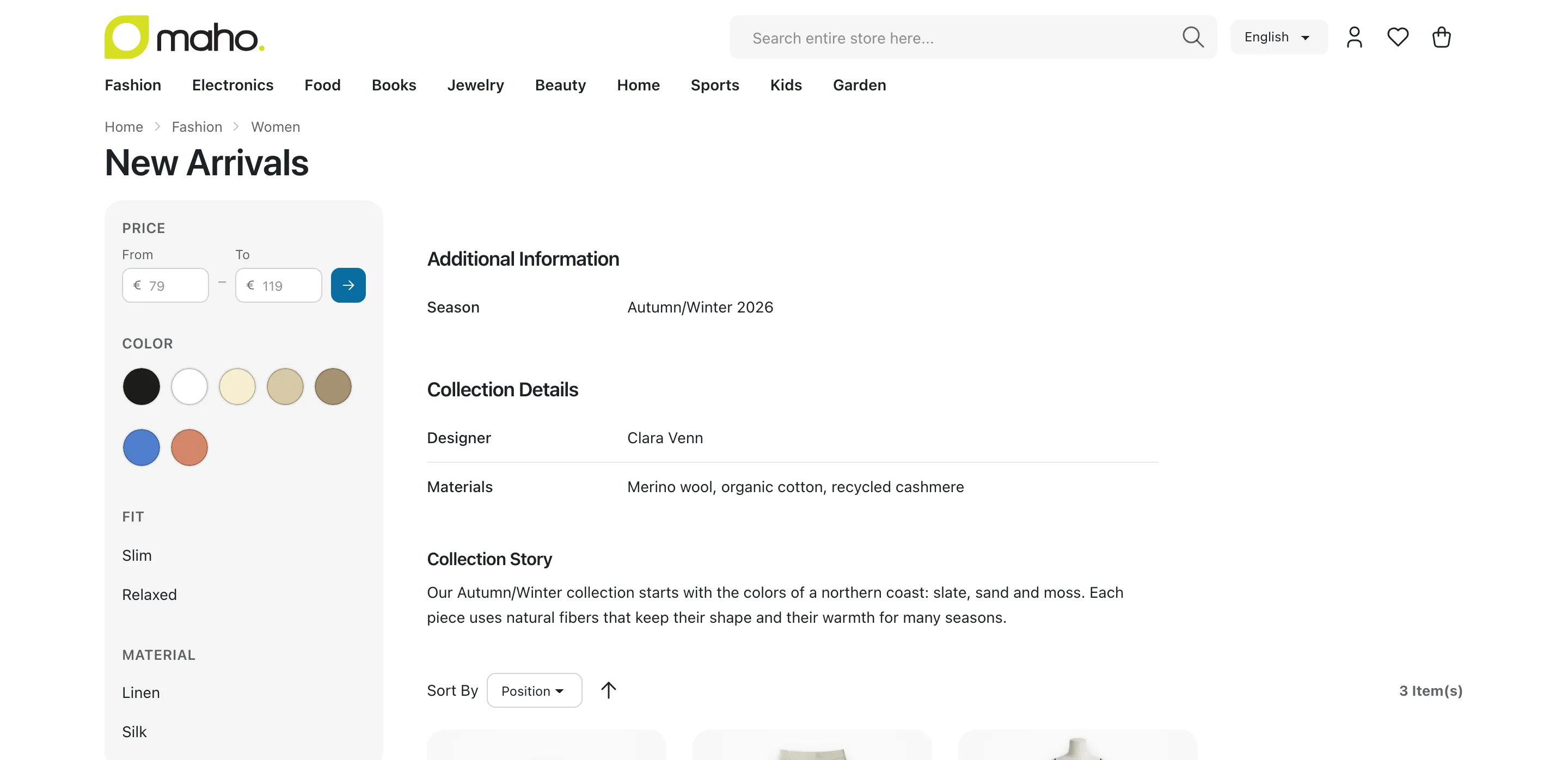
The table shows HTML only when Allow HTML Tags on Frontend or Enable WYSIWYG is Yes. It does not show Image attributes. To show an image, such as a brand logo, a developer adds it to the category template of the theme.
Translate the name of a group
The name of a group is the title of its tab in the admin, and the title of its table on the category page. You can give the table a different title in each language.
- On the set page, click the group, then click Rename. To make a new group, click Add.
- In Admin, enter the name that the admin shows. Two groups of one set cannot have the same name.
- In the row of each store view, enter the name in the language of that store view. If you leave a row empty, the store view shows the Admin name.
- Click Save in the window, then click Save on the set page.
Import
The category import file can set the set of each category in the _attribute_set column. A new category without a value takes the set of its parent. The import refuses a value of an attribute that is not in the set of the category. Category Import/Export has the details.
The API
The categories of the REST and GraphQL API have two more fields. Only an admin and an API token can read them:
attributeSetId: the set of the category. A new category without one takes the set of its parent. An update can change the set, as for a product. The next night, the store deletes the values of the attributes that are not in the new set.customAttributes: the values of the attributes that you added, by attribute code. A write takes only the attributes of the set of the category. A Dropdown is an option ID, a Multiple Select a list of option IDs, and a Yes/Notrueorfalse. Only a read of one category by its ID and the response of a create or an update have this field. The list of categories, the children of a category and a read by URL key do not have it.
To find the attribute codes and the option IDs, read GET /api/rest/v2/custom-attributes?entityType=catalog_category.