HTML and Tailwind Classes in Content
The content editor shows rich text. The source view shows the HTML of the same content in a code editor. Use the source view to give an element a class, or to change HTML that the rich text editor does not show.
The storefront is built on Tailwind CSS and daisyUI. So a class such as text-rose-600, rounded-box or md:text-center styles the content, as it does in the templates of the theme.
Open the source view
Click Source (the </> button) in the toolbar of the content editor. Click it again to go back to the rich text. The button is also in the toolbar of Fullscreen Page Builder.
When you go back to the rich text, the editor checks the HTML. If the rich text editor cannot keep a part of it, a message names that part and asks before the editor removes it.
In the source view, these buttons show under the field. They insert at the cursor of the code editor:
| Button | What it inserts |
|---|---|
| Insert Widget... | A {{widget}} directive |
| Insert Image... | An image from the media library |
| Insert Variable... | A store or custom variable, such as {{config path="general/store_information/name"}} |
| Validate HTML | Nothing. It checks the HTML with the W3C validator and lists the errors |
The setting Enable WYSIWYG Editor in System > Configuration > Content Management > WYSIWYG Options decides how a field opens:
| Value | The field opens in |
|---|---|
| Enabled by Default | The rich text |
| Disabled by Default | The source view. Click Source for the rich text |
| Disabled Completely | A plain text field, with no editor |
The Show / Hide Editor button under the field no longer exists. The Source button does the same thing.
Edit the HTML of one element
You can open the HTML of one element only, instead of the whole content:
- A Columns, Bento Grid or Accordion block, and each of its cells, has a badge when the pointer is on it. Click the
</>button of the badge. - In the popup menu of a table, click Edit HTML.
- Click the label of a
divelement, or double-click an element that the rich text editor cannot edit, such as a video.
The Edit HTML dialog shows the HTML of that element. Click Update to replace the element. Undo (Ctrl+Z, or Cmd+Z on a Mac) brings back the element as it was, in one step.
Use classes
Inside a class attribute, the code editor helps you with the classes of the store view:
- Completion. Type the start of a class. The list shows the classes that the storefront knows, also variants such as
md:orhover:. A color class has a square in its color. The panel next to the list shows the CSS of the selected class. - Tooltip. Point at a class to see its CSS. When the classes of the attribute are not in the order that Tailwind recommends, the tooltip has a Sort the classes button.
- Unknown class. A class that the storefront does not style gets a wavy underline and the message "No style found for the class". Check the spelling. A daisyUI class that the theme does not use yet also gets this message, but it works on the storefront after the save.
- Shorter form. When a class has a shorter name, such as
h-fullforh-[100%], the editor shows a hint. Click Replace in the hint to use the shorter name.
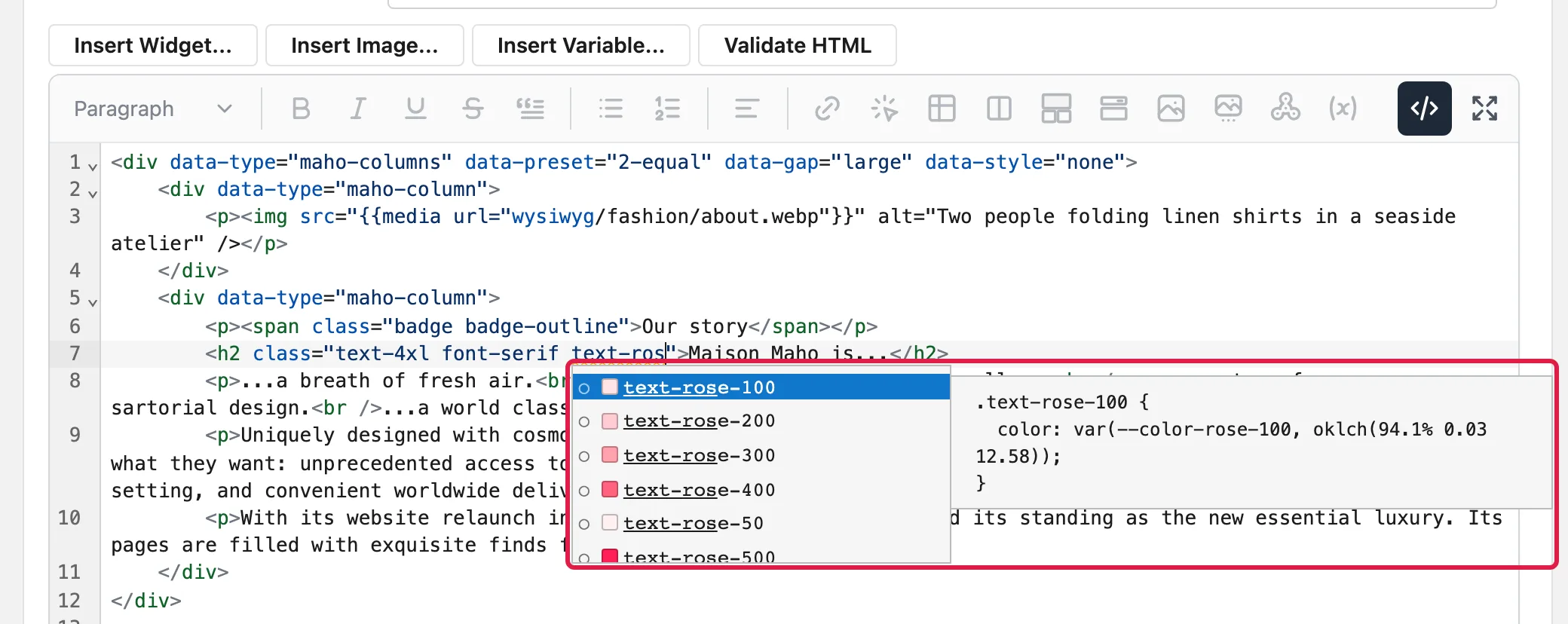
The editor uses the theme and the colors of one store view: the store view of the page or the block, or the default store view when the content shows in all store views. In Fullscreen Page Builder, the store view of the preview applies.
When a new class shows on the storefront
The Preview pane of Fullscreen Page Builder shows a new class at once, before you save.
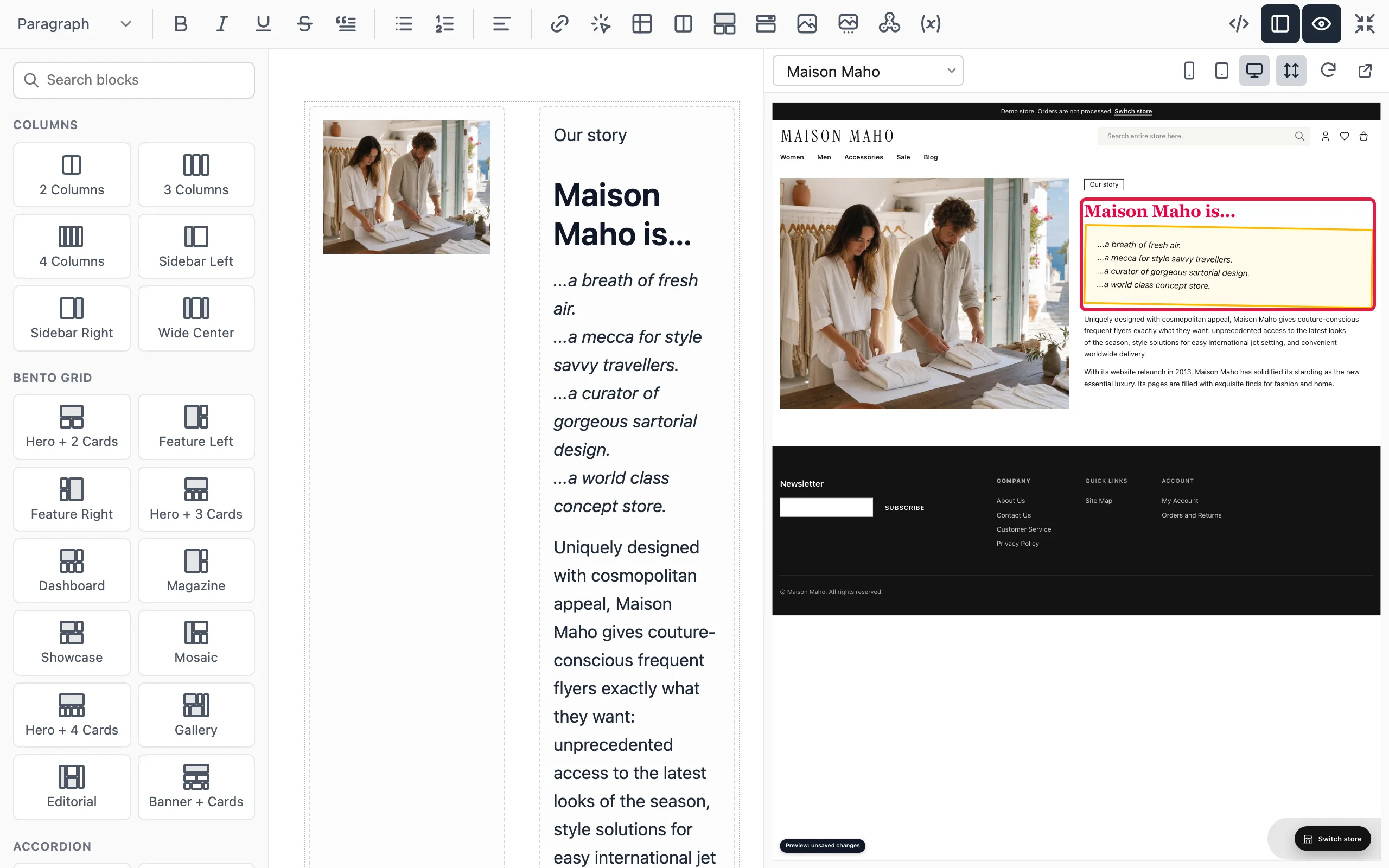
The storefront shows a new class after the save, when the store has built a new stylesheet:
- You save the content.
- About one minute later, the store builds a stylesheet with the classes of all the content.
- The storefront loads the new stylesheet.
An import of products, categories or CMS content also starts a build when it ends.
The build needs Node.js on the server, and a queue worker that runs it. Without them, the storefront shows only the classes that the theme already has, and a new class has no effect there. Ask the person who runs your server, and see Tailwind build of the content.
The classes work in this content:
| Content | Where to edit it |
|---|---|
| CMS pages and static blocks | CMS > Pages, CMS > Static Blocks |
| Blog posts | CMS > Blog > Posts |
| Widgets | CMS > Widgets |
| Custom variables | System > Custom Variables |
| Terms and conditions of the checkout | Sales > Terms and Conditions |
| Product and category descriptions | Each text attribute that has the WYSIWYG editor |
| Copyright and Miscellaneous HTML of the footer, Demo Store Notice Text | System > Configuration > Design |
The preview cannot show a daisyUI class that the theme does not use yet, such as a component class. The storefront shows it after the build.